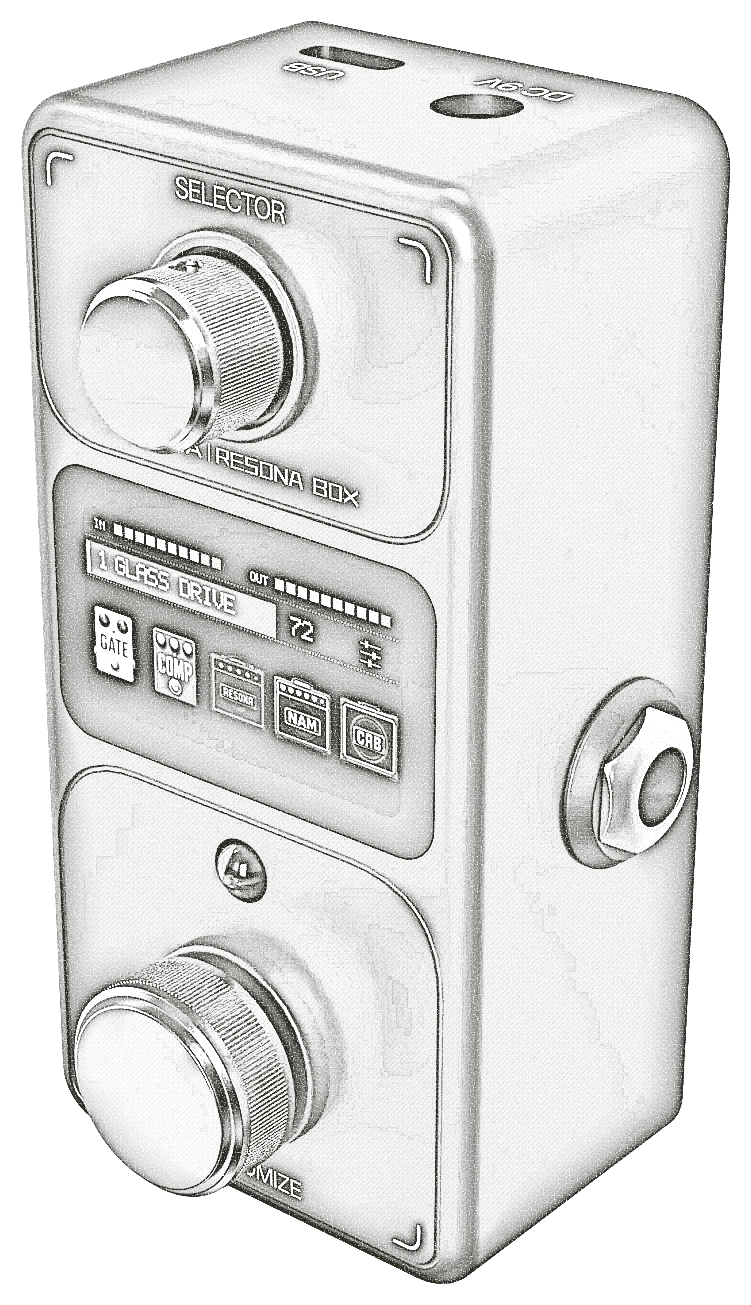
Creator Lab
Build effects and apps for RESONA BOX. Customize what’s on the screen, what each knob does, and how it sounds.
Play what others made.No code needed.
Everything here happens on the website, your Resona Box and your phone.
- 01Website · USB
Install from the community
- Open Discover and choose a Sound Module or an App.
- Connect your Box with USB-C.
- Press Install to Resona Box, then choose your Box when the browser asks.
- Sound Modules go into the effect list. Installing an App restarts the Box into that App.
Works in Chrome or Edge on a computer.
Open Discover - 02Resona Box · Phone · Computer
Play it and adjust it
Apps provide their own screen and controls. Here’s how to adjust a Sound Module such as Echo.
- Choose the installed module for a preset. It runs as a single FX block.
- In Echo, turn SELECTOR to choose a parameter and CUSTOMIZE to adjust it.
- On your phone, connect to the Box over BT MIDI in Lab Control.
- In the Web Editor, connect over USB-C, select FX, and adjust its parameters. Press Save to keep your changes.


Make your own.Sound Modules and Box Apps.
Build an effect in Flow or write it directly in C++. Add your own DSP blocks, build a Box App, or work with an AI agent through MCP. Preview, install, and publish from Creator Lab.
- 03Desktop app
Choose a project type
Choose Sound Module to build an effect you can select in a preset. Choose Box App to design the Box’s screens, knob behavior, and navigation.
- 04Desktop app
Build a Sound Module
- Wire blocks in Flow. Start from a recipe or connect blocks from the library, as in this Schroeder reverb.
- Write the effect directly in C++. Use the RESONA SDK to define the DSP, parameters, and on-device screen.
- Write a custom DSP block. Use New block to create a C++ header in the project’s blocks folder, then combine it with other blocks in Flow or call it from your code.
- 05Desktop app · Audio interface
Hear it before it is on the Box
Press Listen to hear the whole Flow through your own audio interface, and Dry to compare. Before and after show the signal, and the device simulator shows your effect's screen and controls on the Box.
- 06Desktop app
Create a Box App
Start from Resona factory UI, Blank, or Synth. Edit the App’s C++ to define its screen and how both knobs respond. Press Build to run the App in the local device preview and try its controls.
- 07MCP
Work with an AI agent
Connect an MCP client to the local Creator Lab server. An agent can create a project, build it, preview its screen, and inspect a USB-connected Box. Installing an App or changing a device preset requires your approval.
- 08Desktop app · USB
Put it on your Box
Connect over USB and press Install on Box. A Sound Module goes into the effect list. Installing a Box App asks for confirmation before restarting into the new App. Use Monitor to inspect the connected Box.
- 09Desktop app · Website
Publish a release
Upload the compiled Sound Module or Box App with a summary and README. Save it as a draft or submit it for review. Approved releases appear under Sound Modules or Apps in the community. Your source files stay on your computer.
Start in the community.Install one. Play it.
Every Sound Module has a page that explains what it does and how its controls work.